Search the Community
Showing results for tags 'spectral library'.
Found 3 results
-
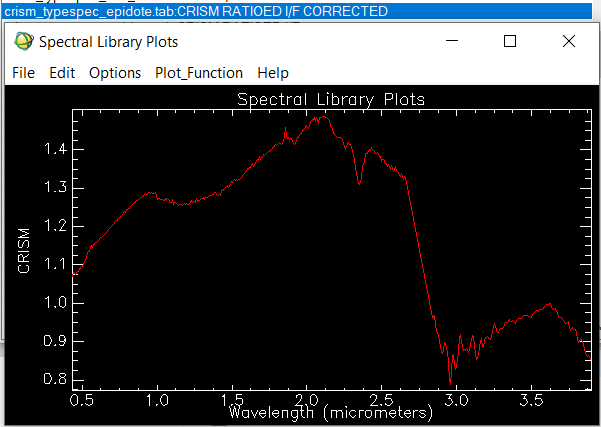
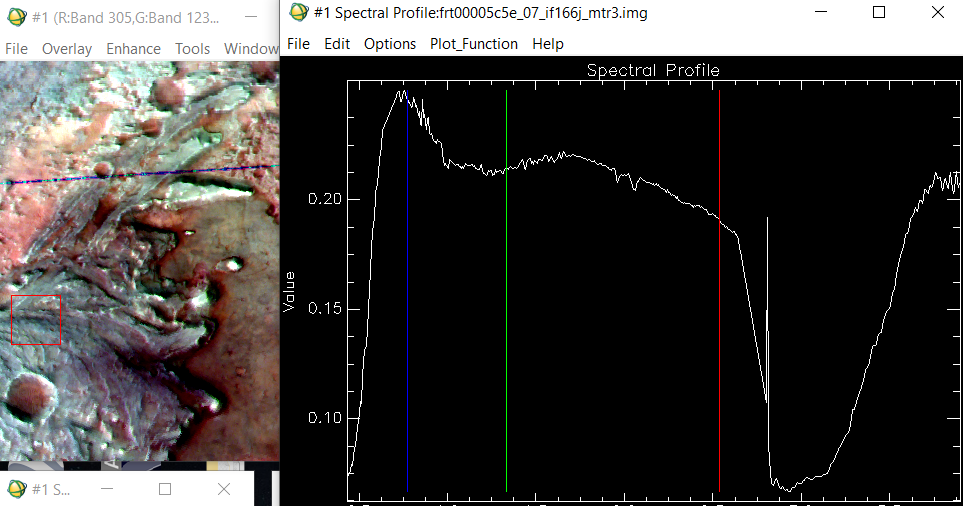
Good afternoon. I'm an undergraduate student of geomatics and remote sensing, and I was trying to use the CRISM images to classify minerals and chemical compounds on the surface of Mars. I collected some information about all the products to use, also I followed the workflow proposed here and I installed CAT on ENVI. I was trying to use a an image of the Jezero Crater data product: frt00005c5e_07_if166j_mtr3, which is projected, atmosferically and geometrically corrected. The data is on I/F which as is explained here, on the FAQs means: Q: What does I/F stand for? A: CRISM is a reflectance spectrometer, and I/F is how reflectance is represented algebraically: I is the energy (actually radiance) observed by the CRISM instrument, and F is the energy (actually solar irradiance) incident at the top of the Martian atmosphere. I/F is a ratio of energies (radiance/irradiance), with some additional scaling so the ratio is unitless. Acording to my knowledge radiance/irradiance=reflectance (unitless), maybe I'm wrong. The case is that I tried to classify the minerals on the image of the Jezero Crater using this library from Viviano et al using the "CRISM RATIOED I/F CORRECTED" spectra but I get wrong or absurd results. I noticed that the spectra of my images is clearly different from the spectra that I find on the Viviano library ratioed i/f. My Spectra always follow this pattern, and never reaches a reflectance of 0.5. Nevertheless on the Viviano library I found spectra like this one of epidote: Why the spectra of my image is so different? Is my data really on reflectance? How can I get real reflectances?
-
We are pleased to announce the release of the PDS Geosciences Node Spectral Library website. See the release announcement under the main forum announcements. Feel free to ask questions and provide feature requests on this forum. Thanks!
-
Hello, This is a very simple question, but I'm having trouble finding any information about this. Am I able to download the CRISM spectral library in order to perform spectral matching for spectra I have no prior knowledge about? I see that crism library data can be downloaded as a zip or tar file, but I am not sure how to handle the .tab files so that ENVI can see them as a library.