Jump to content
View in the app

A better way to browse. Learn more.

PDS Geosciences Node Community

A full-screen app on your home screen with push notifications, badges and more.

To install this app on iOS and iPadOS
  1. Tap the Share icon in Safari
  2. Scroll the menu and tap Add to Home Screen.
  3. Tap Add in the top-right corner.
To install this app on Android
  1. Tap the 3-dot menu (⋮) in the top-right corner of the browser.
  2. Tap Add to Home screen or Install app.
  3. Confirm by tapping Install.
  • Search By Tags

    Search will match any tag entered
  • Search By Author

Content Type

Forums

  • PDS Geosciences Node
    • Announcements
    • For data providers
    • For data users
  • PDS Geo Tools
    • Analyst's Notebook
    • ODE - Orbital Data Explorer
    • Spectral Library
  • Workshops
    • MRO/CRISM Data Users' Workshop 2012

Categories

  • Data user tools

Blogs

  • Working with PDS data
  • Using the Analyst's Notebook

Find results in

Find results that contain...

Date Created

  • Start

    End

Last Updated

  • Start

    End


Filter by number of...

  • Minimum number of comments

  • Minimum number of replies

  • Minimum number of reviews

  • Minimum number of views

Found 1 result

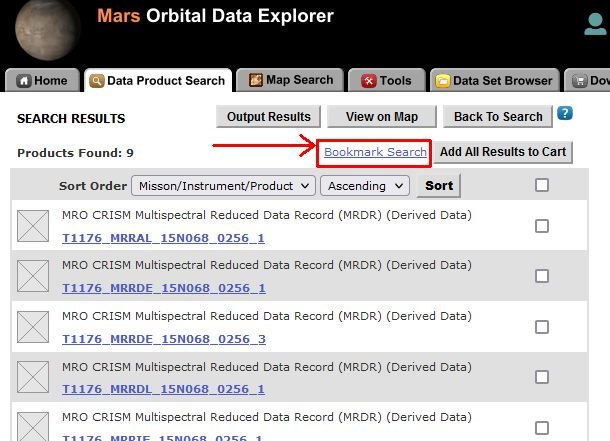
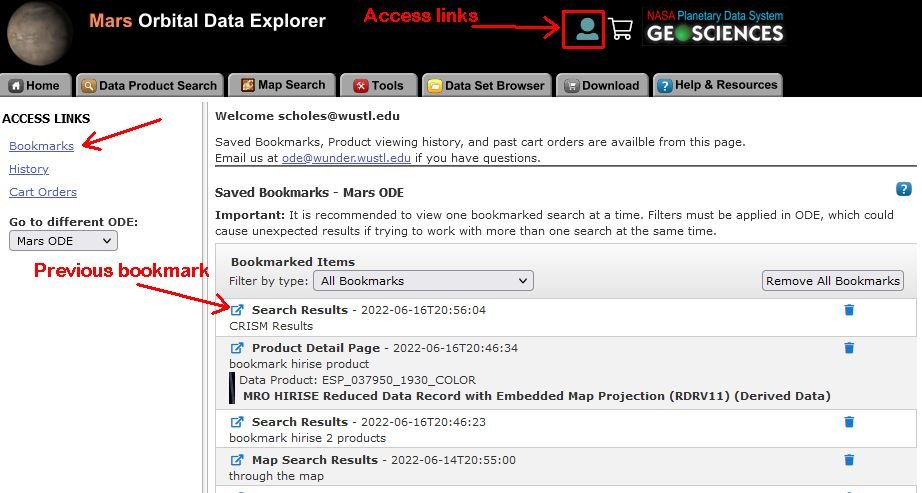
  1. An optional user login has been added to ODE. It's free and simple to use! Through this feature, users can save product searches, map searches, and product details pages! Past cart history and viewed product detail pages are accessible, as well. Click the anonymous user icon in the ODE banner to create an account or sign in. Additional user account information is found in the ODE help or email us at ode@wunder.wustl.edu with questions. Links to ODE versions Lunar ODE Mars ODE Mercury ODE Venus ODE For a quick example, we will display saving a product search result list as a bookmark. Example of Saving a product search result list (must be logged in): Click the "Bookmark Search" link. Then enter an optional description and save the bookmark. Saved bookmarks are accessed from the user icon menu in the ODE banner. From that location, bookmarks, history, and previous cart orders can be accessed. Here we are listing the saved bookmarks. Click a bookmark to open the saved location to a new browser tab.


Configure browser push notifications

Chrome (Android)
  1. Tap the lock icon next to the address bar.
  2. Tap Permissions → Notifications.
  3. Adjust your preference.
Chrome (Desktop)
  1. Click the padlock icon in the address bar.
  2. Select Site settings.
  3. Find Notifications and adjust your preference.